
How to review warehouse QC photos
Find the inspection photos in PonyBuy and check the item before international shipping.
Find the item in Warehouse
After PonyBuy has received and inspected the item, open User Center and choose Warehouse. Find the item using your order details and open its inspection photos.
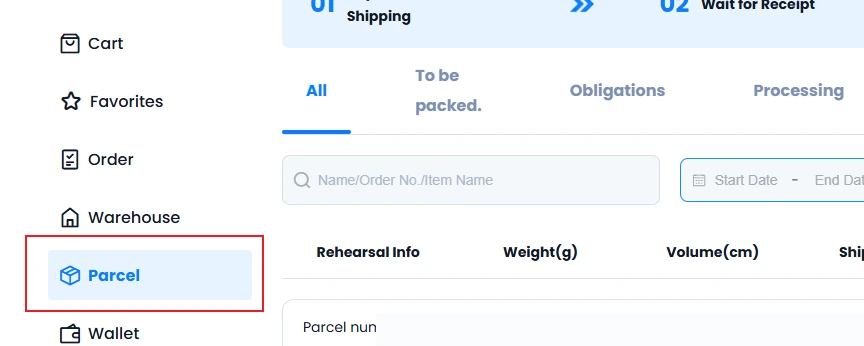
PonyBuy User Center navigation. ① Open Warehouse to find the inspected item. Inspect the item and its labels
Compare the warehouse photos with the seller page. Check the color, condition, visible measurements and size tags. If a detail is missing, check with PonyBuy before you ship.
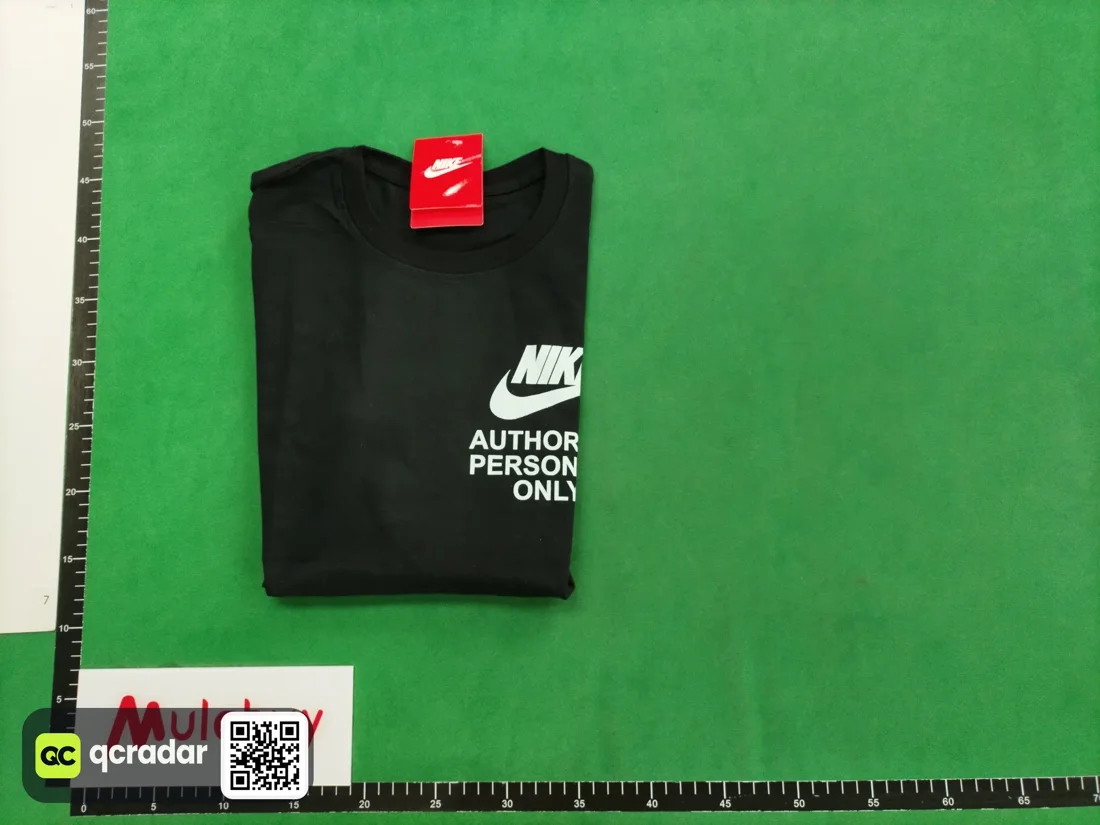
Findspreadsheet warehouse photo example. Use your own PonyBuy order photos to inspect the item you received. Report a mismatch before submitting a parcel
Use the order enquiry or after-sales entry to explain the issue and identify the relevant photo. Confirm available return or exchange options and deadlines before international dispatch.
Check PonyBuy’s returns policy